
Installing the extension on Chromebooks for use with Basispoort (Google Workspace)
To use Myndr with Basispoort, you need to install the special Myndr extension for Basispoort. If you do this on all student accounts, you get a complete picture of internet use within your school.
Installing works as follows:
1 Manage the right group
The installation is done in the Google Workspace Admin console under Devices > Chrome > Apps & extensions.
There, select the group or organisational unit (OU) that all students belong to.

2 Add a new extension
Once you have selected the right group, hover your mouse over the large plus sign at the bottom right of the page. A number of symbols now appear above the plus sign; click the grid icon.
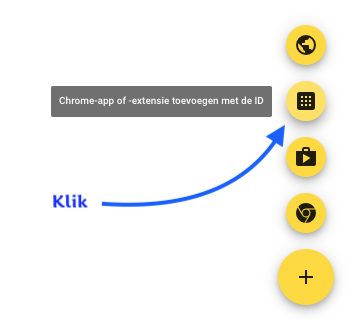
3 Enter the ID
A dialog box appears; enter the ID of the extension.

Under Extension ID, enter the following code: hmgiofkfdfmocnbdlaieodfpmlpockka
Click SAVE.
4 Make it mandatory
On the right, under Installation policy, choose Force install + pin to browser toolbar.
This way you can be sure that all students get the extension installed and keep it.

5 Incognito mode
We recommend disabling incognito mode for students. If your students are allowed to use incognito mode, set the toggle for this setting to on.

6 Apply
Click SAVE at the very top right of the window

The extension will now be installed on all accounts within the group or organisational unit. This can take a few minutes.
Updated on: 03/11/2026
Thank you!